If you are a website developer, designer, or manager dealing with optimising a website with a lot of images and ALT (Alternative) text, this article is for you. This article is about optimising images and ALT text in images (and making images more accessible to search engines).
QUOTE: “I have spent hours in usability testing labs studying how people who use screen readers react to alt text. Blind screenreader users have to plow through a lot of information on a page to find what they are looking for. Your job is to make it easier for them. They “skim” a page or document mostly by reading lists of interactive elements or headings. Users that only want alt text if it is important to the information. Try to make it less than 80 characters. If the image is relevant to the info on the page, then briefly describe it in alt text or the appropriate aria- attribute.” Jeanne Spellman, Member of WCAG Working Group 2013
After 25 years in SEO (Search engine optimisation) Strategy, including time spent building private, public, governmental, college and university websites, I’ve seen countless trends come and go.
But one principle has remained steadfast: the things that are good for Google’s users are eventually good for your Google rankings.
QUOTE: “When choosing alt text, focus on creating useful, information-rich content that uses keywords appropriately and is in context of the content of the page. Avoid filling alt attributes with keywords (keyword stuffing) as it results in a negative user experience and may cause your site to be seen as spam.” Google Search Central Documentation, 2021
Nowhere is this truer than with image optimisation. Alt text isn’t just an SEO box to tick; it’s a fundamental pillar of web accessibility and a powerful signal of content quality.
For too long, web developers and marketers have treated images as an afterthought – a decorative element to break up text.
That’s a critical mistake. Every image on your site is an opportunity: an opportunity to improve user experience, an opportunity to make your content accessible to everyone, and an opportunity to send strong relevance signals to search engines. The human impact of this is not trivial. As one person shared:
“Today, my dad cried over the phone, he wanted one week where he could use his computer without my help. He’s blind. Each inaccessible webpage tells him, “you aren’t welcome in this world.” If you don’t know whether your website or app is accessible: it’s not. Start learning.”
More than two million people are currently living with sight loss in the UK, according to the Royal National Institute of Blind People (RNIB), with projections showing that this number will rise to 2.8 million by 2035 (RNIB; Fight for Sight). In the United States, around 7.08 million people experience visual acuity loss, including more than one million who are blind (Institute for Health Metrics and Evaluation). Canada reports an estimated 1.8 million people with vision loss, including approximately 68,000 who are blind (IAPB). In Australia, about 1.3 million people are affected, with around 57,000 classified as blind (IAPB). Across Europe, more than 30 million people are blind or partially sighted—roughly one in every 30 Europeans (European Blind Union). This is a statistic that we cannot ignore.
QUOTE: “If the image is essential to the info on the page, then describe the info on visually on the page as a figure or a regular text paragraphs. Sighted users also use screen readers, often for reading disabilities. If your image or graph is essential, everyone benefits from a text description. Especially in the education sector, it is valuable for all students to get equivalent information.” Jeanne Spellman, Member of WCAG Working Group 2013
This guide reframes the conversation.
We’re moving beyond a simple checklist to a strategic framework.
My goal is to show you how to make your visual content work harder for you by serving your users first. We’ll cover everything from the foundational principles of writing perfect alt text to advanced strategies for e-commerce, keyword integration, and the technical nuances that separate amateur efforts from professional, high-ranking results.
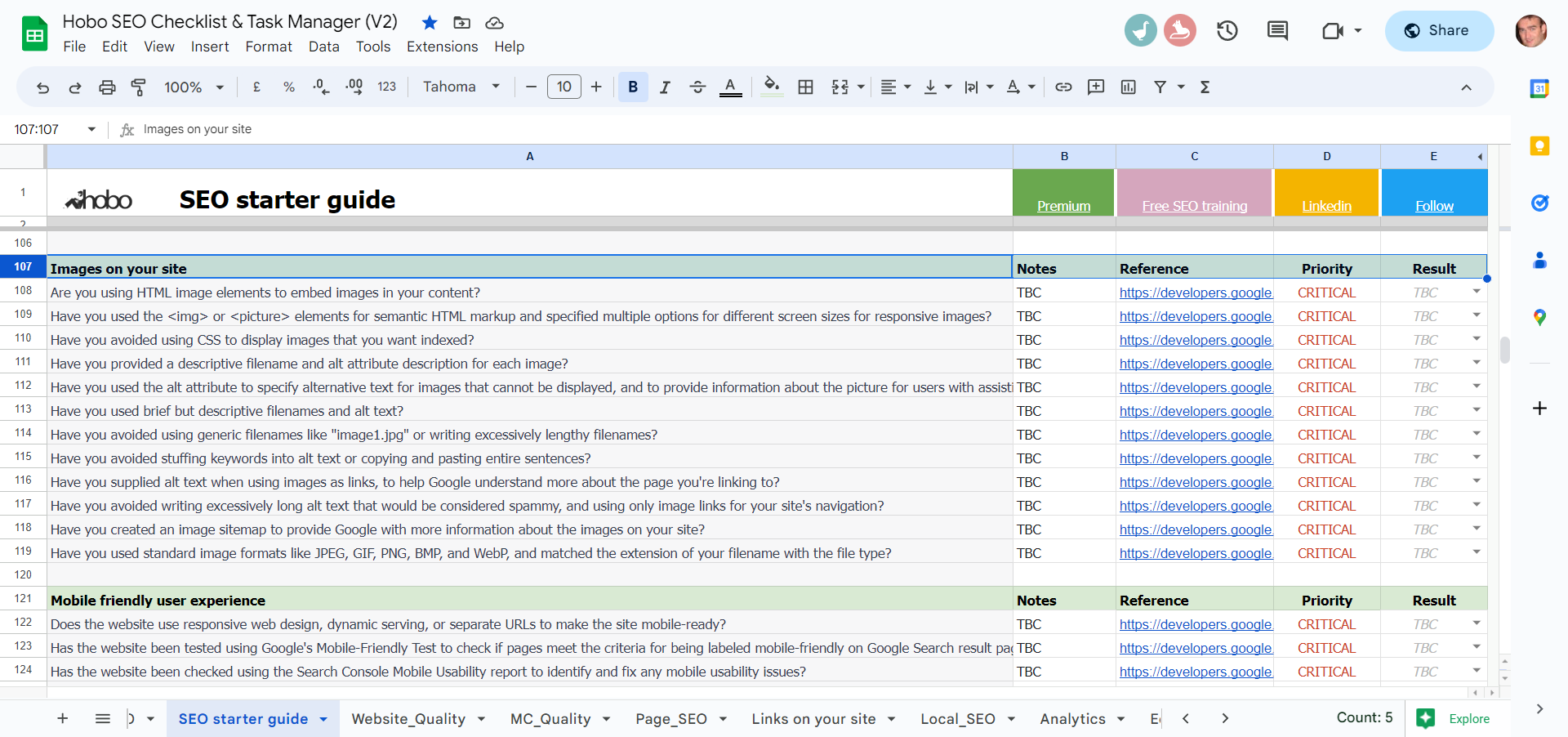
To help you track your progress, the Image SEO checklist is available as a free SEO checklist in a Google spreadsheet and also in a free-to-download SEO checklist in a Microsoft Excel spreadsheet.
Section 1 – Writing Alt Text That Works For Humans and Machines
QUOTE: “Don’t embed important text inside images: Avoid embedding text in images, especially important text elements like page headings and menu items, because not all users can access them (and page translation tools won’t work on images). To ensure maximum accessibility of your content, keep text in HTML, provide alt text for images.” Google Search Central Documentation, 2021
At its core, alt text (alternative text) is a principle of accessible web design. It’s an HTML attribute added to an <img> tag to provide a text description of an image for users who are unable to see it. This includes people using screen readers due to visual impairments, as well as users who have images turned off or are on a slow connection where images fail to load.
As former Google engineer Matt Cutts said back in 2007, “Adding an alt tag is very easy to do and you should pretty much do it on all of your images. It helps your accessibility and it can help us understand what’s going on in your image”.
Getting this right is not optional. Failure to include a text equivalent for a non-decorative image represents a Priority 1 WCAG error and means your website would not comply with basic UK DDA and SECTION 508 (in the US) recommendations.
Google’s John Mueller confirmed that this text is indexed, stating, “Yes… so the alt text is essentially shown when the images are turned off in most browsers so that’s something that we would count as part of the on-page text”.
The Core Principle – Describe, Don’t Decorate
QUOTE: “JAWS 6.0 – reads ALT text in 125 character chunks (excluding spaces). If ALT text exceeds 125 characters, it divides it into multiple graphics, each having no more than 125 characters of ALT text, beginning where the previous graphic left off.” Terrill Thompson, University of Washington, 2020
The single best piece of advice I can give for writing effective alt text is to use what I call the “phone call test,” a concept echoed in the W3C’s own guidelines. Imagine you’re reading the webpage aloud over the phone to someone who needs to understand the page. When you get to an image, what do you say?
That description is your alt text. Its purpose is to act as a functional equivalent of the image for readers who can’t view it, conveying the same essential information or function as the image within the context of the page. If the image is purely decorative and adds no information, it doesn’t need a description – and we’ll cover how to handle that later.
The Anatomy of Perfect Alt Text
QUOTE: “alt attribute should be used to describe the image. So if you have an image of a big blue pineapple chair you should use the alt tag that best describes it, which is alt=”big blue pineapple chair.” title attribute should be used when the image is a hyperlink to a specific page. The title attribute should contain information about what will happen when you click on the image. For example, if the image will get larger, it should read something like, title=”View a larger version of the big blue pineapple chair image.” John Mueller, Google 2017
Writing great alt text is a blend of art and science. It requires you to be descriptive, concise, and context-aware.
- Be Descriptive & Specific: Vague descriptions are unhelpful. The goal is to paint a mental picture. Google’s own documentation shows this progression perfectly: instead of
<alt="puppy">, a better version is<alt="Dalmatian puppy playing fetch">. This level of detail helps both screen reader users and search engine algorithms, which use alt text alongside computer vision to understand an image’s subject matter. - Be Concise: While Google has stated there is no strict character limit for alt text, accessibility best practices suggest a more constrained approach. As accessibility expert Jeanne Spellman noted, “Blind screenreader users have to plow through a lot of information on a page to find what they are looking for. Your job is to make it easier for them… Try to make it less than 80 characters”. Furthermore, screen reading software like JAWS often stops reading alt text after approximately 125 characters. For this reason, I recommend aiming for a sweet spot between 80 and 125 characters. It’s also a best practice to end your alt text with a period; screen readers recognise this punctuation and will pause, creating a more natural auditory separation between the image description and the text that follows.
- Provide Context: The best alt text connects the image to the topic of the page. A generic stock photo of a person at a laptop is meaningless on its own. Its alt text should be tailored to the article’s content. For a page about SEO, the alt text could be
<alt="A digital marketer analysing a keyword performance report on a laptop.">. For a page about remote work, it might be<alt="A woman participating in a video conference from her home office.">.
Common Mistakes I See Every Day (And How to Fix Them)
In my audits, I see the same alt text mistakes over and over. Avoiding these common pitfalls will immediately put you ahead of the curve.
- Mistake: Starting with “Image of…” or “Picture of…”: This is redundant and wastes valuable characters. Screen readers already announce an element as an “image” or “graphic” based on the HTML tag. Jumping straight into the description provides a much better user experience.
- Mistake: Keyword Stuffing: This is an outdated and harmful practice. Google’s own documentation is clear on this:
“When choosing alt text, focus on creating useful, information-rich content that uses keywords appropriately and is in context of the content of the page. Avoid filling alt attributes with keywords (keyword stuffing) as it results in a negative user experience and may cause your site to be seen as spam.” Alt text like
<alt="red shoes trainers running shoes buy shoes cheap shoes">is a terrible experience for screen reader users and signals to Google that you might be trying to manipulate rankings. - Mistake: Redundancy: If the image has a detailed caption or the surrounding text already describes the image’s content, the alt text should not simply repeat that information. It should provide alternative information or be left empty if the image is fully described by the text.
- Mistake: Using Filenames as Alt Text: Never use a generic camera filename like
IMG_4081.jpgas your alt text. It provides zero value to users or search engines. - Mistake: Using All Caps or Including Unnecessary Demographics: Writing alt text in all caps can be difficult for people with reading disabilities to read and may be misread by screen readers as an acronym. Additionally, when describing people, only include demographic information like race or gender if it is critical to the main point of the image. Otherwise, describe the person by their role or activity, such as “a doctor” or “a basketball player”.
Good vs. Bad Examples – Finding the ‘Just Right’ Description
To make these principles more concrete, here are a few examples that show the difference between alt text that is too vague, too wordy, and just right.
Example 1: A plate of waffles
- Too concise:
alt="Waffles." - Too wordy:
alt="Photo of a round white plate with 17 slices of red strawberries surrounding a stack of three golden-brown waffles with two whole red strawberries on top, with leaves." - Just right:
alt="A stack of waffles on a plate with strawberries."
Example 2: A company mascot
- Too concise:
alt="Gopher." - Too wordy:
alt="Drawing of blue Go gopher with large round eyes, small yellow paws, single white tooth, and pink hat with small tassel, blowing noisemaker with orange and yellow stripes." - Just right:
alt="Go gopher with noisemaker and 10th anniversary party hat."
Section 2: The Strategic Power of Keywords in Image SEO
While accessibility and user experience are the primary drivers for alt text, we can’t ignore SEO. When done correctly, integrating keywords into your image attributes is a powerful way to enhance your page’s topical relevance. The key is to do it naturally and strategically, not forcefully.
My 16-Word Test Results: A Historical Perspective
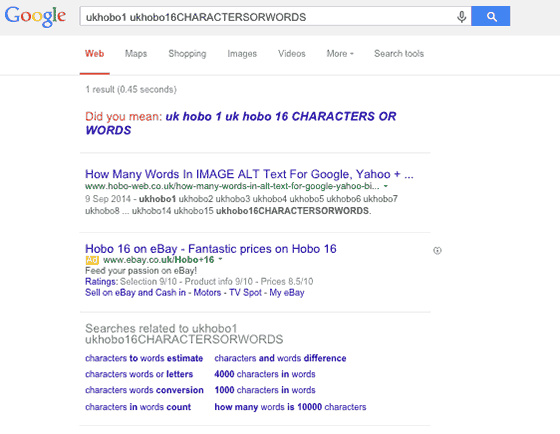
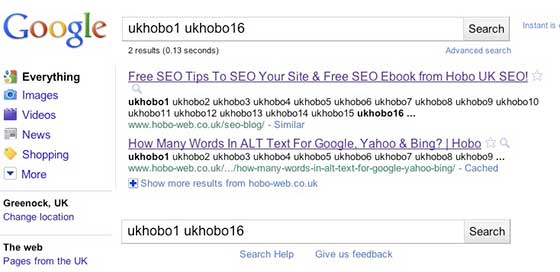
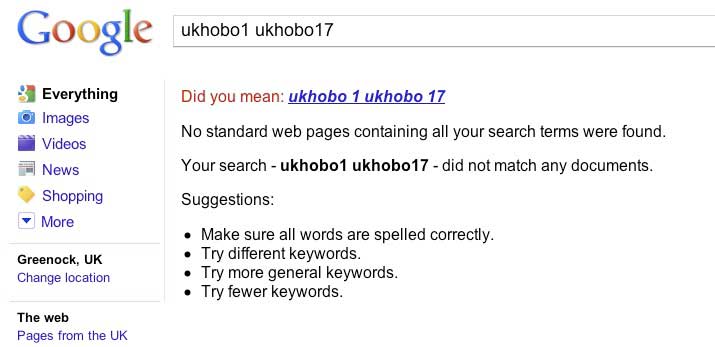
A question I’ve investigated for years is how much alt text Google actually pays attention to for ranking purposes. Back in 2011, I ran a simple test using long strings of nonsense keywords in an alt attribute to see how many Google would index and rank the page for. The result was clear: Google Search seemed to count the first 16 words of the alt text towards the ranking of the page.
I revisited this test in 2015, 2017, and again in 2018. While the way Google displays search results has evolved, the underlying mechanics appear to have remained remarkably consistent.
The text is a very light ranking signal, but for some long-tail searches, those 16 words can be very useful. Interestingly, for Google Image Search, the limit is much higher – I’ve seen it count up to 50 words. This demonstrates that there is plenty of space to write a proper, accessible description that also has a positive SEO impact.
How My Own Strategy Has Evolved
My personal approach to this has changed over the years, reflecting the evolution of search engines. In the past, where it was relevant and time permitted, I aimed to put the main focus keyword of the page in an image’s alt text at least once—just enough to signal relevance. These days, my focus is different. I concentrate more on adding text that is highly relevant to the image itself, which naturally supports the page’s topic in a more user-centric way.
Moving Beyond the Primary Keyword
Your page should have a clear primary keyword that you target in your title tag, H1 heading, and opening paragraph. Your images, however, are the perfect place to reinforce your topic with secondary keywords (what some incorrectly label LSI (Latent Semantic Indexing) keywords, which, we found out in the DOJ Vs Google antitrust case, are actually co-occurring keywords better called QBST (Query-Based Salient Terms). These are related terms, synonyms, and subtopics that provide more context to search engines.
Using secondary keywords helps you rank for a broader range of queries without creating separate pages and risking keyword cannibalisation.
For example, if your article’s primary keyword is “home workouts,” stuffing that exact phrase into every image’s alt text is unnatural. Instead, use your images to target relevant secondary keywords that a user might also search for:
- An image of someone doing pushups could have
<alt="A man performing a bodyweight exercise for chest strength at home."> - An image showing a collection of resistance bands could have
<alt="A set of resistance bands, an essential piece of equipment for no-equipment home workouts.">
This approach builds a rich semantic map of your page, signalling to Google that you are covering the topic in comprehensive detail.
The Untapped Potential of Long-Tail Keywords
Long-tail keywords are longer, more specific search phrases, typically three or more words. While they have lower search volume individually, they are less competitive and often have much higher conversion intent. A user searching for “best waterproof trail running shoes for women with flat feet” is much further down the buying funnel than someone searching for “shoes”.
Images are an incredibly effective tool for targeting these hyper-specific, long-tail queries, especially in e-commerce and local SEO.
- E-commerce Example: A product photo shouldn’t just be named
shoes.jpg. A long-tail approach would be to name the filebrooks-adrenaline-gts-22-womens-blue.jpgand use alt text like<alt="A pair of women's Brooks Adrenaline GTS 22 running shoes for overpronation in a blue colourway.">. This targets a very specific user need. - Local SEO Example: A contractor in Glasgow could use an image of a finished project with the filename
new-kitchen-installation-glasgow.jpgand alt text<alt="A modern kitchen renovation with a marble island recently completed for a client in Glasgow's West End.">. This captures both the service and the location, targeting local search intent.
Where to Place Keywords for Maximum Impact
To optimise your images effectively, you need to use a combination of attributes. Here is my recommended priority list for placing your keywords:
- Image Filename: This is the very first clue you give to search engines about an image’s content. Always use descriptive, keyword-rich filenames before you upload. Separate words with hyphens (
-), not underscores (_), as Google can parse hyphens as word separators more effectively. For example,black-leather-office-chair.jpgis infinitely better thanIMG_0021.jpg. - Alt Text: As we’ve discussed, this is the most important attribute for both accessibility and SEO context. It’s your primary opportunity to provide a rich, natural-language description that can include your target secondary or long-tail keywords.
- Captions & Surrounding Text: Google does not analyse an image in a vacuum. It extracts information from all the content on the page, especially the text immediately surrounding the image. Placing your images near highly relevant paragraphs reinforces their context.
- Image Title Attribute: The
titleattribute is what often appears as a tooltip when a user hovers their mouse over an image. It is a much weaker SEO signal than alt text and is not consistently supported by mobile browsers or screen readers. My advice is to focus your efforts on writing excellent alt text. As Barry Schwartz of SERoundtable noted, quoting Google:
“As the Googlebot does not see the images directly, we generally concentrate on the information provided in the “alt” attribute. Feel free to supplement the “alt” attribute with “title” and other attributes if they provide value to your users! So for example, if you have an image of a puppy… playing with a ball, you could use something like “My puppy Betsy playing with a bowling ball” as the alt-attribute for the image. If you also have a link around the image, pointing a large version of the same photo, you could use “View this image in high-resolution” as the title attribute for the link.”
Section 3 – Beyond the alt Attribute: A Holistic Technical Framework
Truly effective image SEO goes beyond descriptive text. The technical performance of your images has a direct and significant impact on your site’s overall user experience and, consequently, its search rankings.
Technical Foundations for Discoverability
A beautifully described image is useless if it slows your page to a crawl or if search engines can’t find it.
- Use Proper HTML (and not CSS): Always use standard HTML image elements (
<img>or<picture>) to embed images in your content. Google does not index CSS images, so if you want an image to be discoverable in search, it must be in an<img>tag. - File Formats for the Modern Web: Google Search supports images in BMP, GIF, JPEG, PNG, WebP, SVG, and AVIF formats. While the older formats are still supported, you should prioritise modern, efficient formats like WebP and AVIF. These formats offer superior compression and quality, resulting in smaller file sizes that load much faster. Faster loading times are critical for user experience and are a key component of Google’s Core Web Vitals (CWV), which are a confirmed ranking factor.
- Compression & Sizing are Non-Negotiable: Every image you upload must be compressed. Tools like TinyPNG or image editing software can drastically reduce file size with minimal loss of quality. Furthermore, you must implement responsive images using the
srcsetattribute in your<img>tags. This allows you to provide multiple sizes of an image, so a user’s browser can download the most appropriate one for their screen size (e.g., a smaller image for a mobile phone, a larger one for a desktop). This is essential for fast mobile performance and passing CWV assessments. - Image Sitemaps: For websites with a large number of images, especially e-commerce or photography sites, creating a dedicated image sitemap is crucial. This is an XML file that provides Google with more information about the images on your site, helping to ensure that all your visual content is discovered and indexed, which might not happen through crawling alone.
- Crawl Budget: For large sites, be mindful of crawl budget. If you reference the same image on multiple pages, consistently use the same URL for that image. This allows Google to cache the image and reuse it without needing to request and process it multiple times.
The Power of Semantic Context
Google’s understanding of a page is sophisticated. It doesn’t just read individual elements; it analyses the relationships between them to understand the broader context.
- Topic Clusters: Your image optimisation efforts are amplified when the page they are on is part of a well-structured topic cluster. A topic cluster involves a main “pillar” page covering a broad topic, which links out to multiple “cluster” pages that cover specific subtopics in detail. Placing contextually relevant images on these pages helps reinforce the semantic connections and signals your site’s expertise on the subject.
- Structured Data (Schema Markup): This is a way of adding code to your website to provide search engines with explicit, machine-readable information about your content. For images, using schema like
Product,Recipe, orArticlecan provide powerful context. For an e-commerce product, for example, you can use schema to explicitly label an image as theimageof that specific product, along with its name, price, and availability. This can help your images appear in rich results, such as product carousels, which can significantly increase visibility and click-through rates. - A Note on
longdesc: Historically, thelongdescattribute was used to link to a more detailed description of complex images. However, this attribute is now deprecated in HTML5 and is not widely supported. It’s better to describe the complex image in the page’s main content and use the alt text to provide a concise summary.
The evolution of image optimisation mirrors the broader evolution of SEO. It began with simple keyword matching in filenames. Then, as Google prioritised performance, it expanded to include technical factors like compression and page speed.
Now, with the rollout of Core Web Vitals, these technical aspects are no longer just “best practices” but are direct measures of user experience that Google uses to rank pages.
A failure in technical image optimisation—such as serving large, uncompressed images that cause layout shifts—is now a failure in core technical SEO.
Section 4 – Advanced Applications and Nuances
Once you’ve mastered the fundamentals, you can apply these principles with more nuance to specific situations.
E-commerce Deep Dive: Making Products Clickable
For an e-commerce site, images are not just content; they are the primary sales tool.
- Use Multiple, High-Quality, Unique Photos: Shoppers expect to see a product from multiple angles. Provide high-resolution photos that show details, different colourways, and scale. Crucially, use your own photography whenever possible. Unique images are ranked more highly by search engines than stock photos from manufacturers that appear on dozens of other sites.
- Show Products in Context: A photo of a sofa on a plain white background is informative. A photo of that same sofa in a beautifully decorated living room is aspirational. Showing products in their usage context helps customers visualise owning the item, which has been shown to increase perceived value and conversion rates.
- Write Alt Text for Product Variants: Don’t use the same alt text for every image of a product. Be specific. If you have images for a T-shirt in three different colours, write unique alt text for each:
<alt="The classic crew neck t-shirt in navy blue.">,<alt="The classic crew neck t-shirt in heather grey.">, etc.
Handling Decorative vs. Functional Images
QUOTE: “Decorative images don’t add information to the content of a page. For example, the information provided by the image might already be given using adjacent text, or the image might be included to make the website more visually attractive. In these cases, a null (empty)
alttext should be provided (alt="") so that they can be ignored by assistive technologies, such as screen readers.” W3C, 2021
Not all images serve the same purpose, and their alt text should reflect that.
- Decorative Images: An image is decorative if it is purely for aesthetic purposes and provides no information—think background patterns, stylistic borders, or spacer images. For these, you must use a null alt attribute:
alt="". This is not the same as omitting the alt attribute entirely. If you leave out thealtattribute completely, a screen reader may read the image’s filename instead, creating a confusing and frustrating experience. The null attribute tells screen readers to ignore the image completely, preventing auditory clutter. - Functional Images: These are images that perform an action, such as images used as buttons or icons. For these, the alt text must describe the function or action, not the visual appearance of the image. For a magnifying glass icon used for a search bar, the correct alt text is
alt="Search", notalt="magnifying glass". For a logo that links to the homepage, it should bealt="<Your Company Name> Homepage". - Aria Attributes: For advanced accessibility, some developers use ARIA (Accessible Rich Internet Applications) attributes. It’s important not to use an
altattribute alongside anaria-attribute that provides a text label, as this can lead to redundant or conflicting descriptions for screen reader users.
The Image as a Link
This is one of the most critical and frequently overlooked aspects of image optimisation. When you wrap an image in an anchor tag (<a>), its alt text functions as the anchor text for that link.
Anchor text is a powerful signal that helps Google understand the topic of the page being linked to. Therefore, the alt text for a linked image should describe the destination of the link. If you have an image of a report cover that links to a PDF download, the alt text should not be <alt="report cover">. It should be <alt="Download the 2025 State of Digital Marketing report.">. This provides clear context to both users with screen readers and search engine crawlers. Avoid using only image links for your site’s main navigation, as this can be less accessible and provide weaker semantic signals than text-based navigation.
As John Mueller explained, the alt attribute should describe the image itself, while the title attribute should be used for the link’s action:
“alt attribute should be used to describe the image. So if you have an image of a big blue pineapple chair you should use the alt tag that best describes it, which is alt=”big blue pineapple chair.” title attribute should be used when the image is a hyperlink to a specific page. The title attribute should contain information about what will happen when you click on the image. For example, if the image will get larger, it should read something like, title=”View a larger version of the big blue pineapple chair image.”
Section 5 – From Pixels to Properties: How a Search Engine Really Sees Your Images
For years, we in the SEO community have operated on a combination of official guidance, experimentation, and hard-won intuition.
But recent events, like the accidental leak of Google’s internal ‘Content Warehouse’ documentation, have given us an unprecedented look inside the machine. This isn’t just theory anymore; it’s a blueprint.
It confirms that to a search engine, an image isn’t a picture—it’s a complex data object, a collection of signals that must be analysed and indexed to be understood.
By dissecting this data model, we can understand how a search engine moves beyond pixels to comprehend content, context, and quality, giving us a powerful strategic advantage.
Identity and Provenance – The Image’s Digital Passport
Before an image can be analysed, it must be uniquely identified. The leak revealed attributes that establish an image’s identity and its history on the web. This includes its url, a unique fingerprint (docid), and crucially, a canonicalDocid to designate the primary source among duplicates.
Timestamps like firstCrawlTime and lastCrawlTime are also vital, helping determine freshness – a key ranking factor I’ve discussed for years.
Physical Characteristics – The Nuts and Bolts
The system also catalogues an image’s intrinsic technical properties, much like the physical specifications of an object. These include basic attributes like width, height, and file size in bytes, which are critical for understanding loading performance. It also determines the true fileFormat (e.g., JPEG, PNG, WEBP), which can sometimes differ from the file extension, and flags for animations (isMultiframe).
Content Analysis – The Dawn of Machine Sight
This is where computer vision comes into play. The system uses sophisticated algorithms to interpret the content of the image itself. We now know it looks for attributes like numberFaces and the largestFaceFrac (the proportion of the image taken up by the largest face), which is invaluable for searches related to people. It even generates a colourScore – an array of 12 values representing the dominance of different colours, which powers filters for queries like ‘blue aesthetic wallpapers’.
Furthermore, Optical Character Recognition (OCR) models detect text within images and store it in ocrTextboxes, which reinforces my long-standing advice: don’t embed important text in images, because the search engine is trying to read it anyway. The system also identifies imageRegions (like “a handbag” or “a tyre”) and applies deepTags generated by deep learning, often used for product identification in shopping-related images.
Safety and Policy – The Digital Gatekeeper
A core responsibility of a search engine is to protect users from harmful content. A significant portion of the image data model is dedicated to this. We saw attributes like finalPornScore and more granular brainPornScores that quantify the likelihood of an image being pornographic or containing violence or medical content.
There are even checks for hateLogoDetection. This confirms that safety isn’t an afterthought; it’s a fundamental, data-driven part of the indexing process.
Ranking and Relevance: Is This a “Good” Image?
This is the part that directly impacts our work. Once an image is understood and deemed safe, how valuable is it? The leak revealed several fascinating ranking attributes:
- Aesthetic Quality: Scores from Neural Image Assessment models (
nimaAvaandnimaVq) predict the aesthetic and technical quality of a photo. This is the algorithmic proof behind the advice to always use high-quality, well-composed images. - User Engagement: A signal called
h2c(Hovers to Clicks) measures how often users who hover over an image in search results proceed to click on it. This is a direct measure of an image’s attractiveness for a given query and a component of the powerful Navboost system. - Site-Level Authority: The leak confirmed the existence of
siteAuthority, a site-wide quality score that has been debated for years. This means the overall reputation of your domain directly impacts how your images are perceived.
Context and Relationships – Where Does This Image Fit?
Finally, an image’s meaning is derived from its context. The data model includes attributes for this:
- Licensing:
imageLicenseInfoindicates how an image can be legally used, populated from metadata. This is why using structured data for licensing is so important. - E-commerce:
shoppingProductInformationlinks an image on a retail site to product data like price and availability. This is a direct link between your product feed and your image’s visibility. - Knowledge Graph:
multibangKgEntitiesconnects an image to entities in the Knowledge Graph, linking a picture of a landmark, for example, to the structured data about that landmark.
Conclusion: Future-Proofing Your Visual Content
QUOTE: “Yes… so the alt text is essentially shown when the images are turned off in most browsers so that’s something that we would count as part of the on-page text.” John Mueller, Google 2017
The central theme of this guide is that effective image SEO is a direct byproduct of creating an accessible, high-performance, and user-friendly experience. When you prioritise clear descriptions for accessibility, fast-loading visuals for performance, and relevant context for user understanding, you are naturally aligning your website with the very quality signals that search engines are designed to reward. By understanding not just the best practices, but the underlying data models and signals that search engines use to deconstruct and rank visual content, we can move beyond simply following rules to building a truly resilient and future-proof strategy.
QUOTE: “While there are no definitive right or wrong lengths for text alternatives provided using the img element’s
altattribute, the general consensus is that if the text alternative is longer 30-50 words (2 to 3 sentences), it should not be considered a short text alternative and should not be presented using thealtattribute” W3C, 2020
The web is becoming increasingly visual. The rise of visual search technologies and the integration of images into AI-driven search experiences like Google’s AI Overviews mean that the importance of your visual content will only grow. Search engines will rely more and more heavily on well-structured, contextually rich data to understand and rank images. The practices outlined here—descriptive alt text, optimised filenames, modern file formats, responsive sizing, and schema markup—are the building blocks for success in this new landscape.
Stop treating images as an afterthought.
Start treating them as a core component of your content strategy. Audit your existing images, implement these practices on all new content, and you’ll build a more accessible, higher-performing website for everyone.
QUOTE: “As the Googlebot does not see the images directly, we generally concentrate on the information provided in the “alt” attribute. Feel free to supplement the “alt” attribute with “title” and other attributes if they provide value to your users! So for example, if you have an image of a puppy (these seem popular at the moment :-)) playing with a ball, you could use something like “My puppy Betsy playing with a bowling ball” as the alt-attribute for the image. If you also have a link around the image, pointing a large version of the same photo, you could use “View this image in high-resolution” as the title attribute for the link.” Barry Schwartz, SERoundtable 2017
Historic Test results
I thought I’d keep some of the old results from tests that led my thinking these last years.
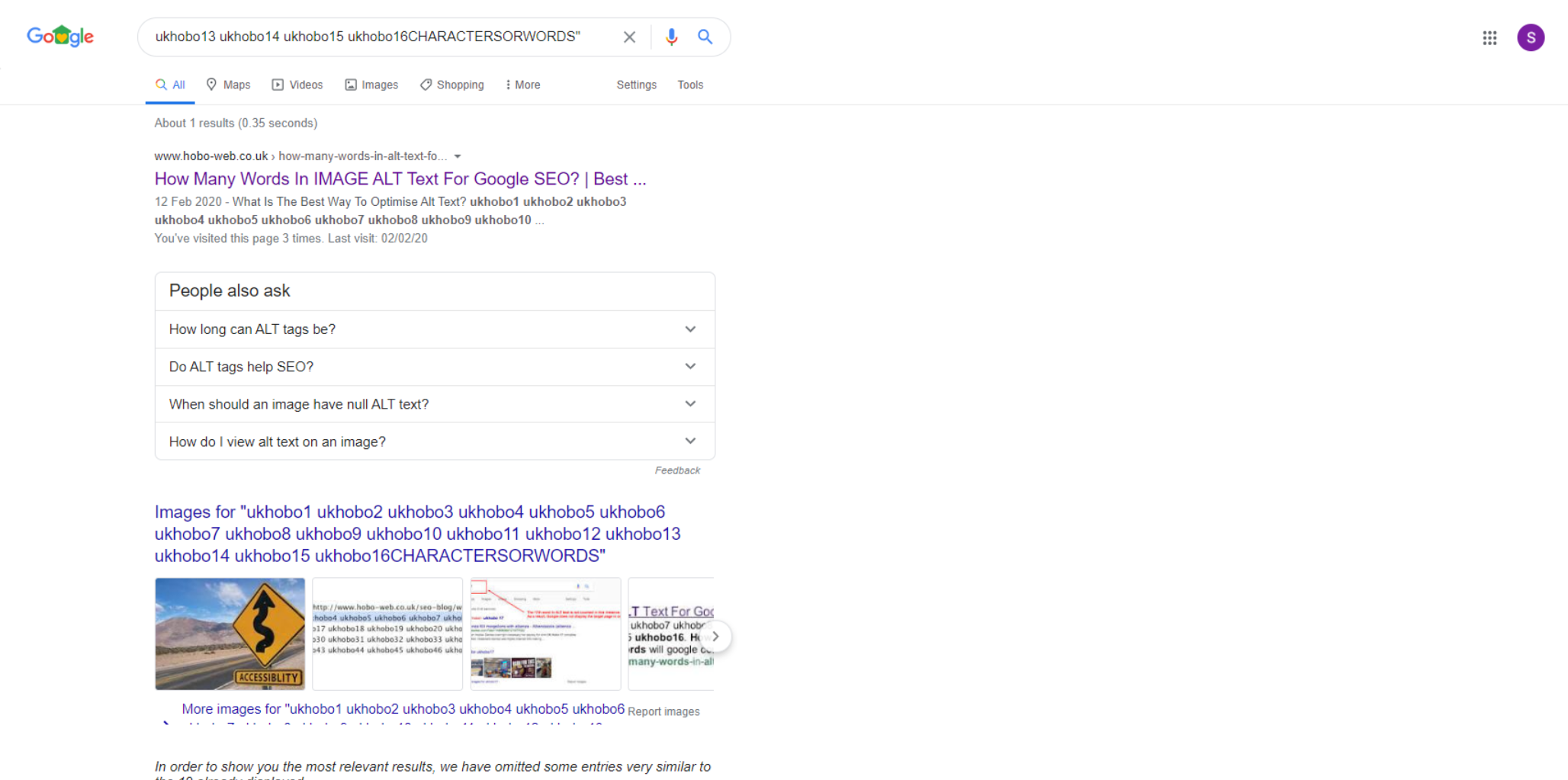
Google operates much like it did in these test observations from the last few years:
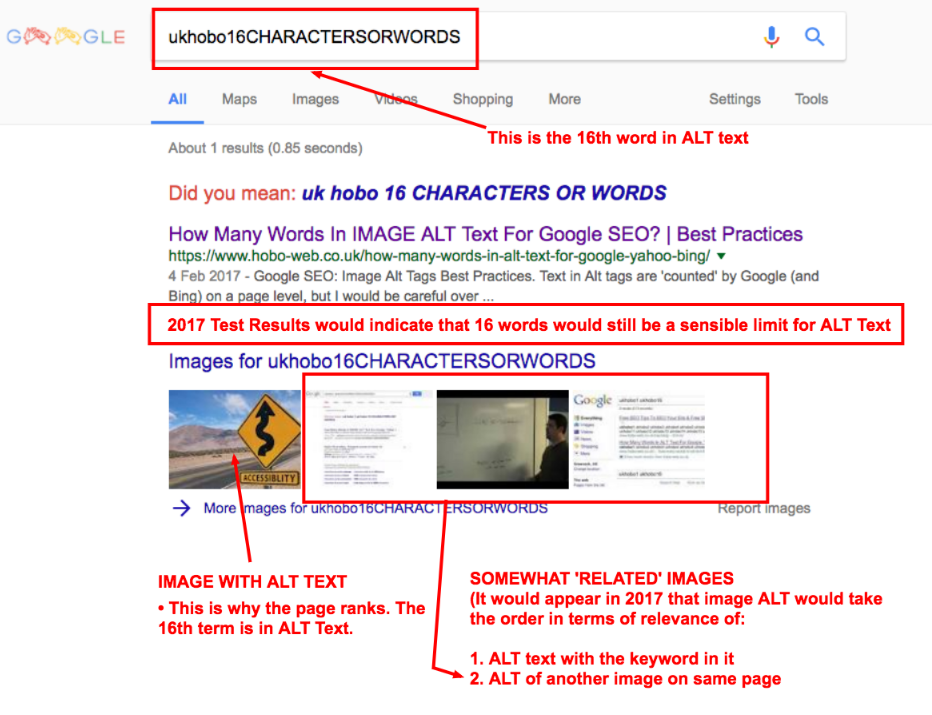
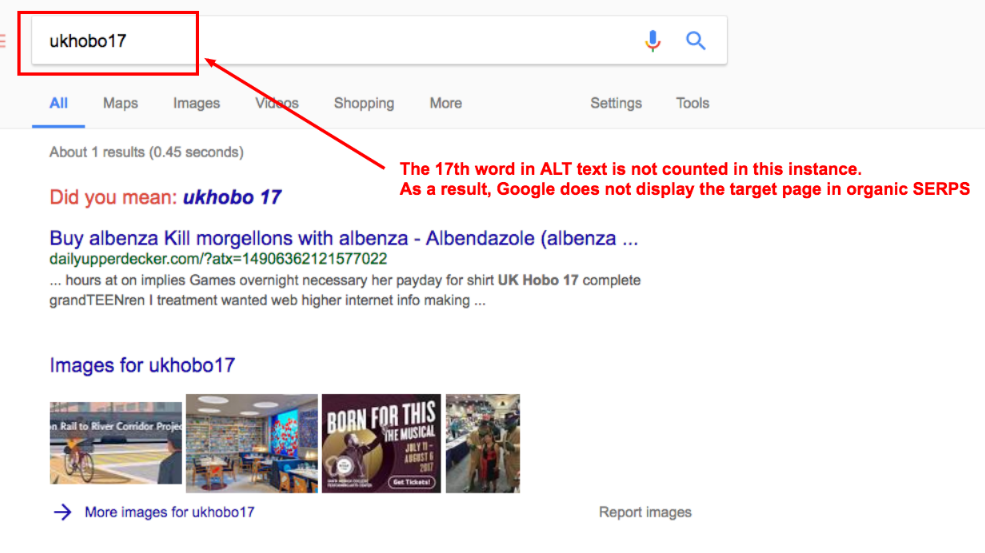
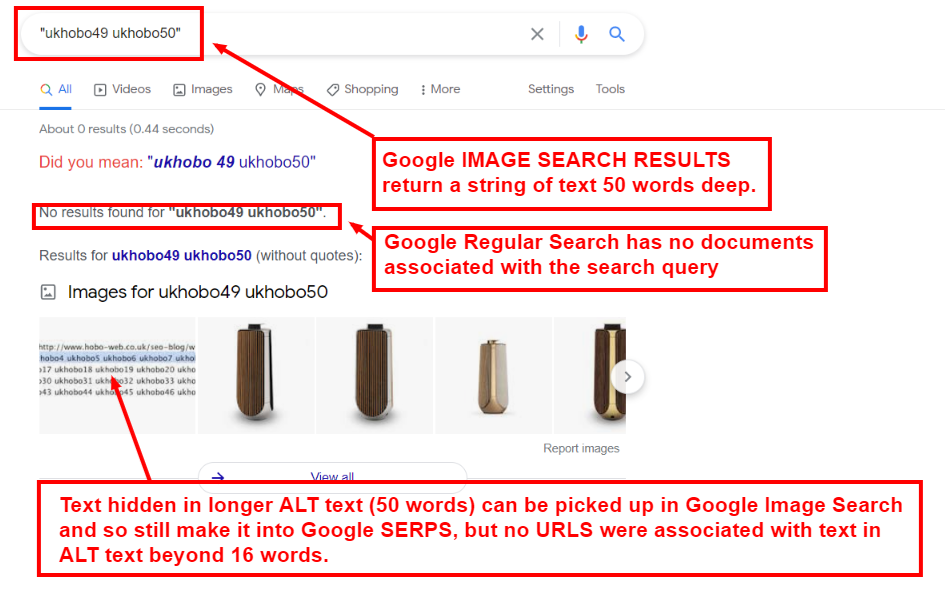
Here is the ALT text I tested with way back a few years ago (2011) and the results in SERPs:

Google Results:

and
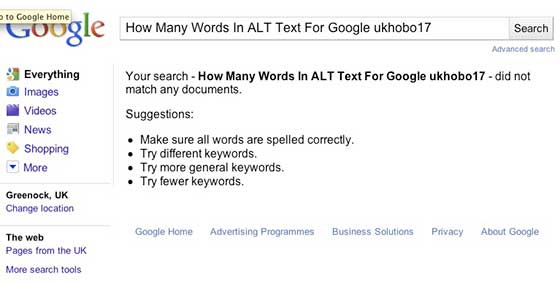
and interestingly
and
I revisited this test in 2015, 2017 and 2018