
If you are a website manager or business owner who wants to check if your website is listed in Google or find out how to submit your website to Google, this article is for you. This is a beginner’s guide to submitting your website to Google and other search engines like Bing.
For almost 25 years, I’ve worked as a professional in search engine optimisation, and one of the most enduring questions I hear from new website owners is, “How do I submit my site to Google?” It’s a perfectly logical question, but the way we answer it today is fundamentally different from how we did a decade ago.
Source: StatCounter Global Stats – Search Engine Market Share
The stakes have never been higher. With Google commanding around 89-90% of the global search market and processing 9.5 million searches every minute, its index is the primary gateway to the internet for most users.
While this guide will give you the precise, step-by-step mechanics for getting your website on the radar of Google and Bing, my primary goal is to reframe the entire concept for you. The era of manually submitting your URL to thousands of search engines is long over; it’s an obsolete, “old-school” practice that provides little to no value today.
Modern SEO isn’t about “submission.”
It’s about creating a technically sound, high-quality website that search engines are eager to discover, crawl, and index on their own. It’s about building an asset that is so well-structured and valuable that Googlebot and Bingbot can find and understand it with maximum efficiency.
In this definitive guide, we will walk through the entire process from a professional’s perspective. We’ll start by understanding how search engines actually work, move to a critical pre-launch audit to fix problems before they start, cover the tactical use of tools like Google Search Console, and then, most importantly, discuss the pivot from simply getting indexed to actually ranking. Let’s begin.
(You can access this free guide on Google Sheets, or you can subscribe to Hobo SEO Tips and get your checklist as a Microsoft Excel spreadsheet.)
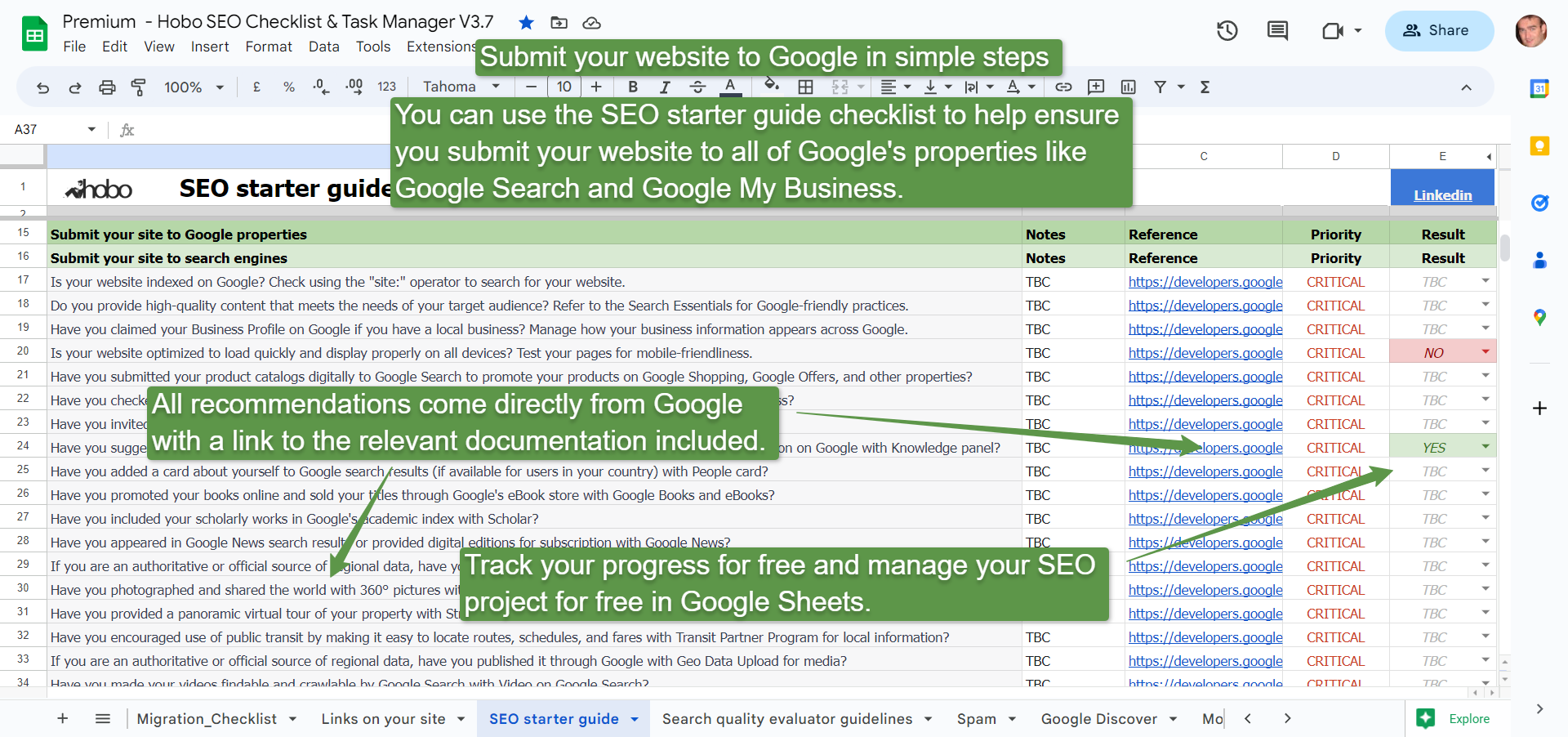
Section 1: The Modern Indexing Engine: How Google Discovers and Processes Your Website
Before you can influence how search engines see your site, you must first understand their process. It’s not a single event but a continuous, three-stage cycle. Think of Google as a colossal library and your website as a new book.
- Crawling: This is the discovery process. Google uses a massive army of programs called “crawlers” or “spiders” (the most famous being Googlebot) to constantly scour the web. They travel from link to link, discovering new pages, updates to existing pages, and dead links. This is why having links—both internal links within your site and external links from other sites—is so fundamental to being found. The crawler’s job is simply to find the “book.”
- Indexing: Once a page is crawled, Google tries to understand what it’s about. It analyses the content (text, images, videos), catalogues it, and stores this information in a massive database called the index. This is akin to the librarian reading the book, identifying its topic, author, and key themes, and placing it in the correct section of the library. If your page isn’t in the index, it cannot appear in search results for any query.
- Ranking (or Serving): This is the final and most complex stage. When a user types a query into Google, its algorithms sift through the index to find the most relevant and highest-quality pages to answer that query. It then orders them in the search engine results pages (SERPs). This is like the librarian not just finding all the books on a topic but recommending the very best, most authoritative, and most helpful one first.([how-google-works-in-2025-doj-antitrust-trial-disclosures-url]), recently illuminated by the DOJ’s antitrust trial against Google, are based on core signals that assess a page’s overall Quality (Q*) and Popularity (P*).
A crucial concept here is “crawl budget.” Google doesn’t have infinite resources, so it allocates a certain amount of attention to each website.
If your site is full of low-quality pages, duplicate content, or broken links, you risk wasting this budget, meaning your most important pages might not get crawled and updated as frequently as they should. This is especially important for larger sites, but individual page quality and popularity will determine which pages are indexed and stay indexed over time.
Our goal is to make the crawling and indexing process as efficient as possible, which starts with a clean technical foundation.
Section 2: The Pre-Launch Audit: A 10-Point Technical Checklist Before You Seek Indexing
In my experience, 90% of indexing problems can be prevented by getting your technical house in order before you ask Google to visit. Submitting a site with fundamental technical flaws is like inviting guests to a house that’s still under construction. It leads to a poor experience and can damage Google’s initial perception of your site’s quality.
Before you even think about submitting a sitemap, run through this critical pre-flight checklist. This process is derived from the comprehensive audits we conduct for clients and is based on Google’s own best practices.
- Check
robots.txt: This simple text file at the root of your domain (yourdomain.com/robots.txt) tells search engine crawlers which parts of your site they shouldn’t access. A common and disastrous mistake is a line likeDisallow: /, which blocks your entire site. Ensure you are not accidentally blocking important pages or resources like CSS and JavaScript files, which Google needs to render your page correctly. - Scan for
noindexTags: Ameta name="robots" content="noindex"tag in a page’s HTML<head>section is a direct command to search engines not to include that page in their index. Check your key pages to make sure this tag hasn’t been left in by mistake, especially after a site migration or launch. - Resolve 404 “Not Found” Errors: Use a tool like Screaming Frog to crawl your own site and find broken internal links. A large number of 404 errors signals a poorly maintained site and provides a frustrating user experience.
- Identify Soft 404s: These are tricky pages that show an error message to a user (e.g., “Product not available”) but return a
200 OKserver status code to Google. This confuses search engines. Google Search Console will report these in its Index Coverage report. - Establish Canonical URLs: If you have multiple pages with very similar or identical content (e.g., printer-friendly versions or pages with URL parameters), you must tell Google which one is the master version. Use the
rel="canonical"link element to point all duplicates to the single, preferred URL. This prevents duplicate content issues from diluting your ranking potential. - Confirm Mobile-Friendliness: With Google’s mobile-first indexing, your mobile site is the primary version for indexing and ranking. Use Google’s Mobile-Friendly Test to ensure your site provides a good experience on smartphones. This is non-negotiable.
- Review Page Speed & Core Web Vitals: A slow website is a poor user experience. Use Google’s PageSpeed Insights tool to check your Core Web Vitals (, , ). A fast, stable, and responsive site is a recognised quality signal.
- Implement Secure HTTPS: Your site must be served over HTTPS (e.g.,
https://www.example.com). An SSL certificate encrypts data between the user and your server and is a foundational requirement for trust and security online. - Review Site Structure & Navigation: Is your site’s navigation logical and easy to use? Can users (and crawlers) reach your most important pages within a few clicks from the homepage? A clear, hierarchical structure helps search engines understand the relationship between your pages.
- Initial Content Quality Check: Before asking Google to index your content, do a sanity check. Is your main content (MC) unique and helpful? Is it free of glaring spelling and grammatical errors? Avoid publishing thin, copied, or auto-generated content from the start. High-quality content is the cornerstone of any successful SEO strategy.
Completing this audit proactively will save you countless hours of troubleshooting down the line.
Section 3: Your Command Centre: Mastering Google Search Console and Bing Webmaster Tools
Forget thinking of these platforms as simple submission portals. Google Search Console (GSC) and Bing Webmaster Tools (BWT) are your essential, free diagnostic dashboards.
They are your direct line of communication with the search engines, providing invaluable data on how they see your website. Setting them up is the first active step in managing your search presence.
Verifying Your Website
Verification is the process of proving to Google and Bing that you own your website. This grants you access to all the protected data and tools.
To verify with Google Search Console:
- Sign in to Google Search Console with your Google account.
- Click “Add a property” in the top-left dropdown.
- I strongly recommend using the “Domain” property type. This will cover all versions of your site (http, https, www, non-www).
- You will be given a TXT record to add to your domain’s DNS configuration. Follow the instructions provided by your domain registrar (e.g., GoDaddy, Namecheap).
- Once you’ve added the DNS record, click “Verify.” It may take a few minutes or hours to propagate.
To verify with Bing Webmaster Tools:
- Sign in to Bing Webmasters.
- You will be given the option to import your sites directly from Google Search Console, which is the easiest method if you’ve already set up GSC.
- Alternatively, you can add your site manually and verify using a similar DNS method, an HTML file upload, or a meta tag.
By setting up BWT, you are also effectively covering Yahoo and DuckDuckGo, as they are powered by the Bing index. For businesses with an international audience, it’s also worth noting the dominant search engines in other major markets. Baidu is the leading search engine in China, and Yandex is the most popular in Russia and the surrounding countries. Both offer their own webmaster tools for site submission and management, which are essential for any SEO strategy targeting those regions.
The Power of the URL Inspection Tool
Once verified, the single most important feature for diagnosing indexing issues is the URL Inspection Tool in GSC.
By entering any URL from your site, you can get a definitive, real-time status report directly from Google’s index.
It will tell you if the URL is on Google, if it has any mobile usability or structured data issues, and, crucially, if it was crawled but not indexed, and why. This tool transforms troubleshooting from guesswork into a data-driven process.
Section 4: Acknowledging Other Key Search Engines
While Google and Bing represent the vast majority of search traffic in many parts of the world, a comprehensive visibility strategy must account for other significant players. These engines are either dominant in specific international markets or serve a user base with unique priorities, such as privacy.
DuckDuckGo: The Privacy-First Engine
DuckDuckGo’s core value proposition is protecting user privacy; it does not track its users or store their search history. Its results are compiled from over 400 sources, including Bing and its own crawler (DuckDuckBot), but notably, not from Google.
- How to Get Indexed: You cannot submit a sitemap directly to DuckDuckGo. Because it pulls data from other sources, the best practice is to ensure your site is well-indexed in Bing by submitting your sitemap to Bing Webmaster Tools. For local businesses, claiming your Apple Maps listing is also crucial, as DuckDuckGo uses it for location-based results when users grant permission.
Yandex: The Gateway to the Russian-Speaking Market
Yandex is the dominant search engine in Russia, holding approximately 69% of the market share as of August 2025, and is widely used in many surrounding countries. For any business targeting this region, optimising for Yandex is non-negotiable.
- How to Get Indexed: Yandex provides a comprehensive suite of tools called Yandex Webmaster. The process is similar to GSC:
- Create a Yandex account.
- Add your site to Yandex Webmaster.
- Verify ownership using a meta tag, HTML file, or DNS record.
- Submit your XML sitemap directly through the dashboard. Yandex Webmaster provides valuable reports on site quality, crawl statistics, and search query performance specific to its index.
Baidu: Navigating the Chinese Digital Landscape
Baidu is the undisputed leader in the Chinese search market, with a market share of around 60% as of August 2025. However, optimising for Baidu requires a fundamentally different approach due to technical and regulatory requirements.
- How to Get Indexed and Rank:
- Language: Baidu almost exclusively indexes content written in Simplified Chinese. Professional, native translation is a prerequisite.
- Hosting and Licensing: To be competitive, you must secure an ICP (Internet Content Provider) license from the Chinese government, which is a legal requirement for hosting a site in Mainland China. Hosting your site in China is a major ranking factor.
- Technical SEO: Baidu’s algorithm places greater emphasis on metadata (meta descriptions, keywords) and exact-match keywords than Google does.
- Submission: Like the others, Baidu has its own Baidu Webmaster Tools, where you can submit your sitemap and monitor your site’s performance.
Section 5: A Deep Dive into XML Sitemaps: Your Website’s Definitive Roadmap for Crawlers
An XML sitemap is a file you create on your website that lists all of your important URLs. It acts as a roadmap, helping search engines crawl your site more intelligently and discover all your content, especially pages that might be hard to find through standard link crawling.
While Google is excellent at finding pages on its own, a sitemap is particularly crucial for:
- Large websites with thousands of pages.
- New websites with few external links pointing to them.
- Websites with deep archives or pages that are not well-linked internally.
- Websites with rich media content, like video and images.
How to Submit Your Sitemap to Google
Most modern CMS platforms (like WordPress with an SEO plugin) will automatically generate an XML sitemap for you, typically located at yourdomain.com/sitemap.xml.
- Sign in to Google Search Console.
- In the left menu, under “Indexing,” click on “Sitemaps.”
- Under “Add a new sitemap,” enter the URL of your sitemap file (e.g.,
sitemap.xml). - Click “Submit.”
Google will then periodically crawl this file to find new and updated URLs.
Sitemap Best Practices Checklist
A sitemap is only as good as its contents. A messy sitemap filled with junk URLs can send negative quality signals. Follow these expert rules:
- Include Only Canonical URLs: Your sitemap should only contain the final, canonical versions of your pages. Do not include URLs that redirect or have a
rel="canonical"tag pointing to another page. - Include Only Indexable,
200 OKPages: Every URL in your sitemap should be a live page that returns a200 OKserver status code. Exclude any pages that are blocked byrobots.txt, markednoindex, or return 404 errors. - Keep It Clean and Updated: Your sitemap should be dynamically generated. When you publish a new blog post, it should be added automatically. When you delete a page, it should be removed.
- Respect Size Limits: A single sitemap file can contain a maximum of 50,000 URLs and be no larger than 50MB (uncompressed). For larger sites, you can create a sitemap index file that links to multiple individual sitemaps.
- Prioritize the
lastmodDate: As Google’s John Mueller has explained, the most important piece of information in a sitemap for crawling is the last modification date.
“In the sitemap file we primarily focus on the last modification date so that’s that’s what we’re looking for there that’s where we see that we’ve crawled this page two days ago and today it has changed therefore we should recrawl it today we don’t use priority we don’t use change frequency in the sitemap file at least at the moment with regards to crawling so I wouldn’t focus too much on priority and change frequency but really on the more factual last modification date information” (John Mueller, Google).
A clean, accurate sitemap is a powerful signal of a well-managed, high-quality website.
Section 6: Dominating Local Search: Strategic Optimisation of Your Google Business Profile
For any business that serves customers at a physical location or within a specific service area, creating and optimising a Google Business Profile (GBP) is not optional – it is one of the most critical steps you can take to get your business recognised as a real entity by Google.
This is your primary tool for appearing in local search results, including the highly visible “Map Pack.”
But GBP is much more than just a map pin.
It is a core component of your local E-E-A-T. A complete, verified, and actively managed profile with accurate information, real customer reviews, and fresh photos is one of the strongest signals you can send to Google that you are a legitimate, trustworthy, and authoritative local business.
How to Set Up and Verify Your GBP
- Go to the (Google Business) website and sign in with a Google account.
- Enter your business name and address. Be meticulous about accuracy—this information should be consistent everywhere online (this is known as your NAP: Name, Address, Phone number).
- Choose the most accurate business category.
- Add your business phone number and website URL.
- You will need to verify your business to prove it’s located at the specified address. This is often done via a postcard mailed to the address with a verification code.
- Once verified, fully complete your profile: add your hours, services, high-quality photos of your business, and encourage customers to leave reviews.
An active GBP listing is a powerful asset. It allows you to control how your business appears in search, engage with customers, and build the trust that is essential for high local rankings.
This local optimisation is critical, as the user’s physical location is one of the most powerful signals Google uses, often layering on top of the core quality and popularity algorithms to deliver hyper-relevant results.
Section 7: Expanding Your Visibility Across the Entire Google Ecosystem
While Google Search is the primary focus, a truly comprehensive strategy involves ensuring your content is visible across Google’s entire suite of services where appropriate. Each platform has its own best practices for submission and optimisation:
- For Video Content: Make your videos findable by following video best practices and distributing them through YouTube.
- For Podcasts: You can expose your podcast to Google by following their specific podcast guidelines.
- For Images: Ensure your images appear in Image Search by following image SEO best practices.
- For News Content: If you publish news, familiarise yourself with the Google Publisher Center help documentation.
- For E-commerce: Promote your products on Google Shopping and other retail properties by submitting your product catalogues digitally via Google for Retail.
- For Academic Works: If you publish scholarly works, ensure they are included in Google’s academic index via Google Scholar.
- For Books: Promote and sell your titles through Google’s eBook store by using Google Books and eBooks.
Section 8: Advanced Indexing Tactics for Dynamic Content (And When to Use Them)
While an XML sitemap is the standard for most websites, there is a faster, more powerful method for sites that publish new content frequently, such as news outlets, high-volume blogs, or job boards. This involves using an RSS or Atom feed combined with a protocol called PubSubHubbub.
“An RSS feed is also a good idea with RSS you can use pubsubhubbub which is a way of getting your updates even faster to Google so using pubsubhubbub is probably the fastest way to to get content where you’re regularly changing things on your site and you want to get that into Google as quickly as possible an RSS feed with pubsubhubbub is is a really fantastic way to get that done.” (John Mueller, Google).
Here’s how it works:
- Instead of waiting for Google to re-crawl your sitemap, PubSubHubbub allows your site to instantly “ping” Google the moment you publish a new piece of content.
- This can lead to near-instantaneous crawling and indexing, sometimes within seconds or minutes. We’ve seen pages index and rank in the top ten in less than a second using this method.
Most modern CMS platforms can support this through plugins or native functionality. While it might be overkill for a small business website that updates its blog once a month, for any publisher where the speed of indexing is a competitive advantage, this is an essential tool to implement.
Section 9: Troubleshooting Indexing Issues: A Step-by-Step Diagnostic Guide
What if you’ve done everything right, but your site or a specific page still isn’t showing up in search results? It’s time to become a detective. Follow this logical, sequential diagnostic flow to identify the root cause.
Step 1: The site: Operator Check
The quickest first step is a simple search operator. Go to Google and type:
site:yourdomain.com
This command tells Google to show you all the pages it has indexed from your specific domain. If you see results, Google knows your site exists. If you see nothing, it’s a sign of a major issue, like your entire site being blocked. You can also use it to check a specific page: site:yourdomain.com/your-specific-page/.
Step 2: The URL Inspection Tool
If the site: search doesn’t give you a clear answer, your next stop is the URL Inspection Tool in Google Search Console. This is your definitive source of truth. Enter the exact URL of the page that is missing. GSC will query Google’s index directly and give you a clear status.
Step 3: The Common Culprits Checklist
The URL Inspection Tool will likely point you to the problem. Here are the most common reasons a page fails to be indexed, which you can cross-reference with your findings:
- Blocked by
robots.txt? GSC will explicitly tell you if the page is blocked by yourrobots.txtfile. If so, you need to edit that file to allow crawling. noindexTag Present? The tool will report if it found anoindexdirective in either a meta tag or an X-Robots-Tag HTTP header. You must remove this tag from the page’s code.- Canonical Tag Pointing Elsewhere? The page might be a duplicate, and Google has chosen a different page as the canonical version. GSC will show you both the “User-declared canonical” and the “Google-selected canonical.” This is a signal to review your canonicalization strategy.
- Page is a Soft 404? Google may have determined the page looks like an error page despite returning a
200 OKstatus. You need to either fix the page to provide valuable content or have it return a proper404 Not Foundcode. - Server Error (5xx)? If Googlebot tried to crawl the page but your server was down or returned an error, it won’t be indexed. Persistent server errors can lead to pages being dropped from the index entirely.
- Manual Action? In rare cases, your site may have received a penalty from Google for violating its guidelines. Check the “Manual actions” report in GSC. This is a serious issue that must be addressed immediately.
- “Crawled – currently not indexed”? This is one of the most common statuses. It means Google found and crawled your page, but decided it wasn’t high-quality enough to be worth adding to the index. This is not a technical error; it is a content quality issue. The solution is to significantly improve the page’s content, helpfulness, and E-E-A-T signals.
This systematic process will allow you to diagnose and fix virtually any indexing issue you encounter.
Section 10: From Indexed to Ranked: The Crucial Pivot to Content Quality and Authority
Let me be perfectly clear: Getting indexed is the start line, not the finish line.
Once your pages are successfully in Google’s index, an entirely different and more complex set of algorithms takes over to determine how they should rank against all the other indexed pages. Indexing is a technical prerequisite; ranking is a fierce competition based on quality and authority.
The recent DOJ vs Google antitrust case and Google leaks have provided an unprecedented look into how these ranking algorithms function.
The evidence confirms that at the highest level, Google’s system boils down to two fundamental signals: Quality (Q)* and Popularity (P)*. The principles discussed below directly influence how your website is scored against these core metrics.
This is where the core principles of our SEO philosophy at Hobo SEO come into play. If you want to move from being merely present in the index to being visible on the first page, you must shift your focus to these areas:
- High-Quality Main Content (MC): Most of your effort should be here. Your content must be useful, 100% unique, and written by a professional or expert on the topic. It should be well-organised, easy to read, and add genuine value. If your content isn’t being shared or linked to organically, you may have a quality problem.
- Satisfy User Intent: You must understand what a user wants when they search for your target keywords. Are they looking to learn something (Know), complete a task (Do), or find a specific website (Go)? Your page must satisfy that intent more comprehensively and efficiently than any of your competitors. This directly feeds into Google’s, which were confirmed in the DOJ trial to be a critical component of its ranking process.
- Demonstrate E-E-A-T: Google’s algorithms are designed to reward content from sources that demonstrate high levels of Experience, Expertise, Authoritativeness, and Trust. This is built through the quality of your content, your author profiles, your site’s reputation, and getting mentions and links from other respected sites in your field.
- Earn Natural Links: Links from other reputable websites are a primary signal of authority. The DOJ trial reconfirmed the importance of links and Pagerank, not just as a measure of link quantity, but as a signal of trust based on the link’s distance from known authoritative sources. As I’ve said for years:
“Link building is the process of earning links on other websites. Earned natural links directly improve the reputation of a website and where it ranks in Google. Self-made links are unnatural. Google penalises unnatural links.” (Shaun Anderson, Hobo 2020)
Do not buy links or engage in schemes that promise fast rankings (Google will penalise you).
True Authority is earned over time by creating content so valuable that other people want to link to it. Google’s stance on this is unequivocal: “Google doesn’t accept payment to crawl a site more frequently, or rank it higher. If anyone tells you otherwise, they’re wrong”. Engaging in such practices can lead to penalties that damage your online reputation and can even result in your site being removed from search results entirely.
Section 11: Expanded FAQ: Answering Your Toughest Questions on Indexing and Ranking
I’ve compiled answers to the most common questions I receive, including some more advanced queries that often come up after the initial submission process.
What does it mean to submit your site to search engines?
It means actively informing search engines like Google and Bing that your website exists. In modern practice, this is done by verifying your site in their webmaster tools and providing an XML sitemap to help them discover and index your content more accurately and efficiently.
Do I absolutely need to submit my site?
No. Search engines will eventually find your website by following links from other sites. However, actively submitting your site via Google Search Console and Bing Webmaster Tools dramatically speeds up the discovery and indexing process, especially for new sites. Some new sites may even experience a “honeymoon period” where they rank well briefly, before settling into their true position. Active management from the start is key to long-term success.
How long does it take for a new site to be indexed?
It varies widely. With proper setup and sitemap submission, it can happen in a few hours or days. For a site with no active submission or external links, it could take several weeks or longer. Factors include the site’s technical health, quality, and how easily crawlers can find it.
Does submitting a sitemap multiple times speed up crawling?
No. Once you submit your sitemap, Google will re-crawl it periodically. Resubmitting the same sitemap repeatedly provides no benefit. The key is to ensure the sitemap file itself is kept up-to-date when you add, remove, or change URLs.
Should I include every single page of my site in the sitemap?
No. Your sitemap should be a curated list of your most important, high-quality, canonical pages. You should exclude low-value pages, tag archives, internal search results, and any non-canonical or noindexed URLs. A clean sitemap is a signal of a well-organised site.
My page says “Crawled – currently not indexed” in GSC. What does it mean, and how do I fix it?
This means Google has successfully crawled your page but has made an editorial decision not to include it in the index at this time. This is almost always a content quality signal. Google has deemed the page not valuable enough to warrant a spot in its index. To fix it, you must significantly improve the content on the page. Make it more comprehensive, more helpful, more unique, and ensure it better demonstrates E-E-A-T. Refer back to Section 8.
What is the difference between blocking a page in robots.txt and using a noindex tag?
This is a critical distinction.
robots.txt prevents Google from crawling a page. If the page is already indexed or has links pointing to it, it can still appear in search results (often with a message like “No information is available for this page”). It’s a request not to visit.
A noindex tag allows Google to crawl the page but explicitly tells it not to include it in the index. This is the correct way to ensure a page does not appear in search results.
How often should I submit my site?
You only need to submit your site once. After you submit your sitemap for the first time through the webmaster tools of Google and Bing, they will re-crawl it periodically. Your job is to maintain a clean and updated sitemap, not to resubmit it manually.
What information is needed when I submit my site?
The only information you need is your website’s URL to verify ownership and the location of your XML sitemap (e.g., yourdomain.com/sitemap.xml). You do not need to provide lists of keywords or detailed descriptions; the search engines’ crawlers will analyse your actual page content to understand what your site is about.
Are there any best practices for writing page titles?
Yes, the page title is a critical SEO element. A good title should be descriptive, concise, and unique for each page. I recommend keeping titles to a maximum of 60 characters to prevent them from being cut off in search results. Include your primary keyword phrase once, ideally near the beginning, but never stuff the title with extra keywords.
Should I use search engine submission services or submit to directories?
In my professional opinion, no. Most automated submission services and low-quality directories provide no value and can be harmful. Many are simply lead-generation tools for low-quality SEO services, and links from spammy directories can be seen as “unnatural links” that could lead to a Google penalty. Invest your resources in creating high-quality content instead.
Can social media links help my site get indexed?
Yes, links from social media platforms like X (formerly Twitter) and Facebook can help with discovery. Search engine crawlers visit these sites and can follow links to find your new content. However, these links are typically “nofollow,” meaning they don’t pass ranking authority. So, while they can speed up indexing, they won’t directly improve your rankings in the same way a link from a reputable website will.